
- Home
- Anyast M4 Plus Wireless Display Dongle in Pakistan
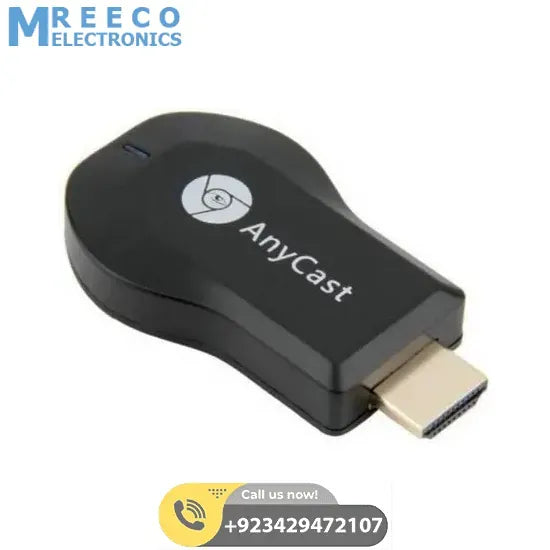

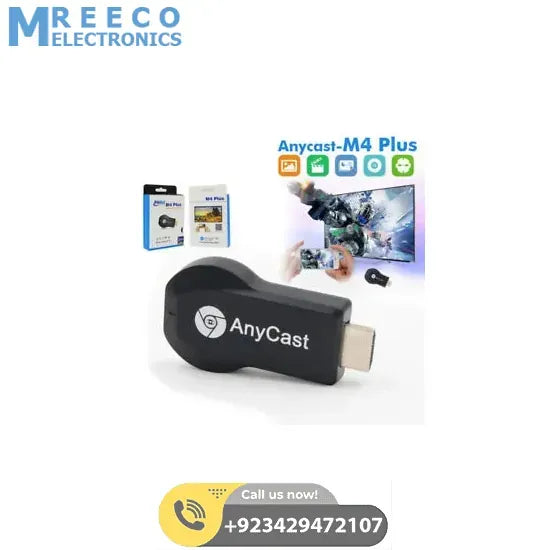
Anyast M4 Plus Wireless Display Dongle in Pakistan
In stock
Hardware InstallationPlease follow below steps to setup AnyCast:Step 1: Connect WiFi cable (micro USB head) to AnyCast dongle main body.Step 2: Plug the AnyCast into the HDMI port of your TV and switch to the right in...
Ask about this product on WhatsApp- Fast deliveryFree shipping on prepaid orders above Rs. 10,000
- Secure payment100% secure payments by Meezan Bank
- SupportMonday to Saturday, 11:00 AM to 8:00 PM
- ReturnsSee our return and refund policy
Description
Hardware Installation
Please follow below steps to setup AnyCast: Step 1: Connect WiFi cable (micro USB head) to AnyCast dongle main body. Step 2: Plug the AnyCast into the HDMI port of your TV and switch to the right input source. Step 3: Plug USB cable into an external USB power adapter. Note: 1 Amp current supply is highly recommended for reliable Wi-Fi connection.
Step 4: You should see the main AnyCast page after power on
Mode Switching Button
Press this button for switching between AirPlay and Miracast Mode
AirPlay for iOS (iPhone/iPad)
Step 1: Switch to Airplay mode by pressing button Step 2: Get SSID and password on screen Step 3: Establish WiFi connection between iOS device and AnyCast. Step 4: Turn on Airplay and select AnyCast’s SSID
Miracast for Android
Step 1: Switch to Miracast mode by pressing button Step 2:
Miracast mode ready Step 3: Find the Miracast function on your Android device (such as screen mirroring/miracast/smart view). Step 4: Establish Miracast connection between Android device and AnyCast.AirPlay Mirroring for Mac OS X
Step 1: Switch AnyCast Dongle to the Airplay/DLNA mode, then connect your Mac to AnyCast Dongle via WiFi (SSID should be AnyCast ###, and read the 8-digit password/PSK on screen). Step 2:Step 2: Switch on AirPlay of your Mac
Miracast for Windows
Step 1: Switch to Miracast mode by pressing button Step 2:
For Window 10, launch the “Windows Start Menu > Settings > Connected devices > Add a printer or scanner”, and then search for AnyCast Dongle. After that, you may start to mirror.
For Windows 8.1, launch the “Windows Start Menu > Settings > PC and devices > Devices > Add a device”, and then search for AnyCast Dongle. After that, you may start to mirror.
Connect to WiFi Router
Step 1: Switch to Airplay mode by pressing the button, and then get the IP address of your AnyCast on screen. Step 2: Use the browser on your device to access the IP address of AnyCast, and select your WiFi router. Step 3: Enter password. Step 4: Connect to your WiFi router.
Setting and Firmware Upgrade
After connected with AnyCast, an IP address will be shown on the setup screen. Please launch browser on your devices (iOS/Android/Mac/Windows etc.) and then enter the IP address accordingly (ex: 192.168.203.1)
Internet: Setup the router connection for your AnyCast. (Note: The connection between AnyCast and your device may be disconnected when you switch to router connection) Language: Change the language of AnyCast Password: Change the password of AnyCast Default Mode: Select AirPlay or Miracast as boot up default mode Resolution: Change output resolution of AnyCast Upgrade: upgrade the firmware of AnyCast. Note: Required Internet connection on your AnyCast Dongle. IMPORTANT! Please upgrade to the latest version in order to compatible with up-to-date devices.
Specifications
| Brand | Mreeco |
|---|---|
| Category | Car Electronics |
| SKU | 637736328035942483 |
| Availability | In stock |
Shipping & Returns
Delivery across Pakistan. Free shipping on prepaid orders above Rs. 10,000.
Please read our return and refund policy before ordering.

You may also like
Handpicked products customers often buy together
Recently viewed
Pick up where you left off
